
Introduction
S-Docs Lightning Web Components (LWCs) allow users to generate documents and interact with them from any Lightning record page. This article details configuration steps for the two main LWCs:
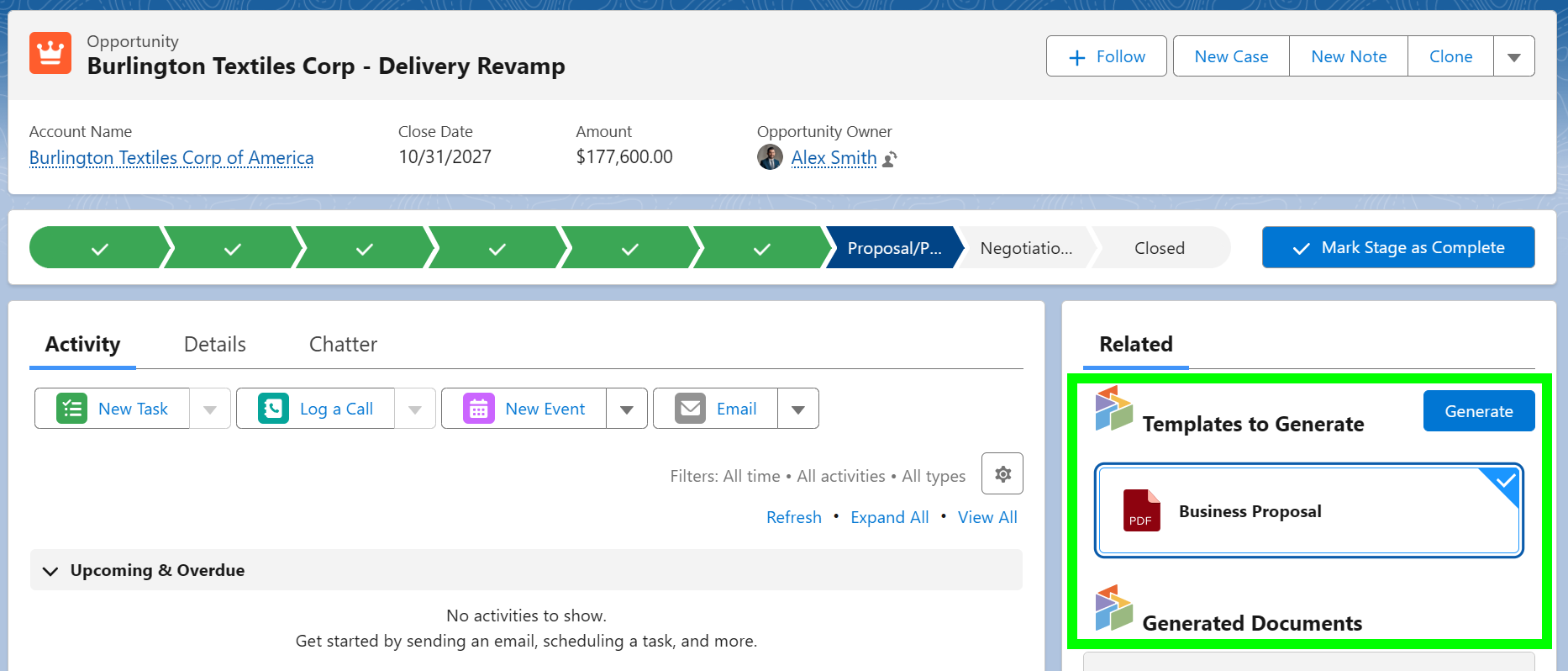
- The Generate Documents (S-Docs) LWC makes it easy for users to generate PDF documents from any Lightning record. When placed on a record page, the component displays available templates and walks users through generating their documents—without leaving the record.
- The Documents (S-Docs) LWC displays generated documents and allows users to email documents, send them for e-Signature, edit documents, and more.
This article covers how to add these components in Lightning App Builder and configure basic settings. It builds upon the basic instructions outlined in our Install & Configure guide.
Before you begin, ensure that:
- You can navigate to and edit Lightning record page layouts using the Lightning App Builder.
- You have authored PDF or PDF-Upload templates for the record type you are customizing.
Configure the Generate Documents (S-Docs) Component
Step 1: Navigate to Lightning App Builder for a Record Page
Navigate to a record page for the object you want to configure the Generate Documents LWC for. Click the Setup gear, then click Edit Page.

Scroll down the list of components in the left sidebar to the Custom - Managed section to find the S-Docs LWCs. Drag the Generate Documents (S-Docs) component onto your page layout.
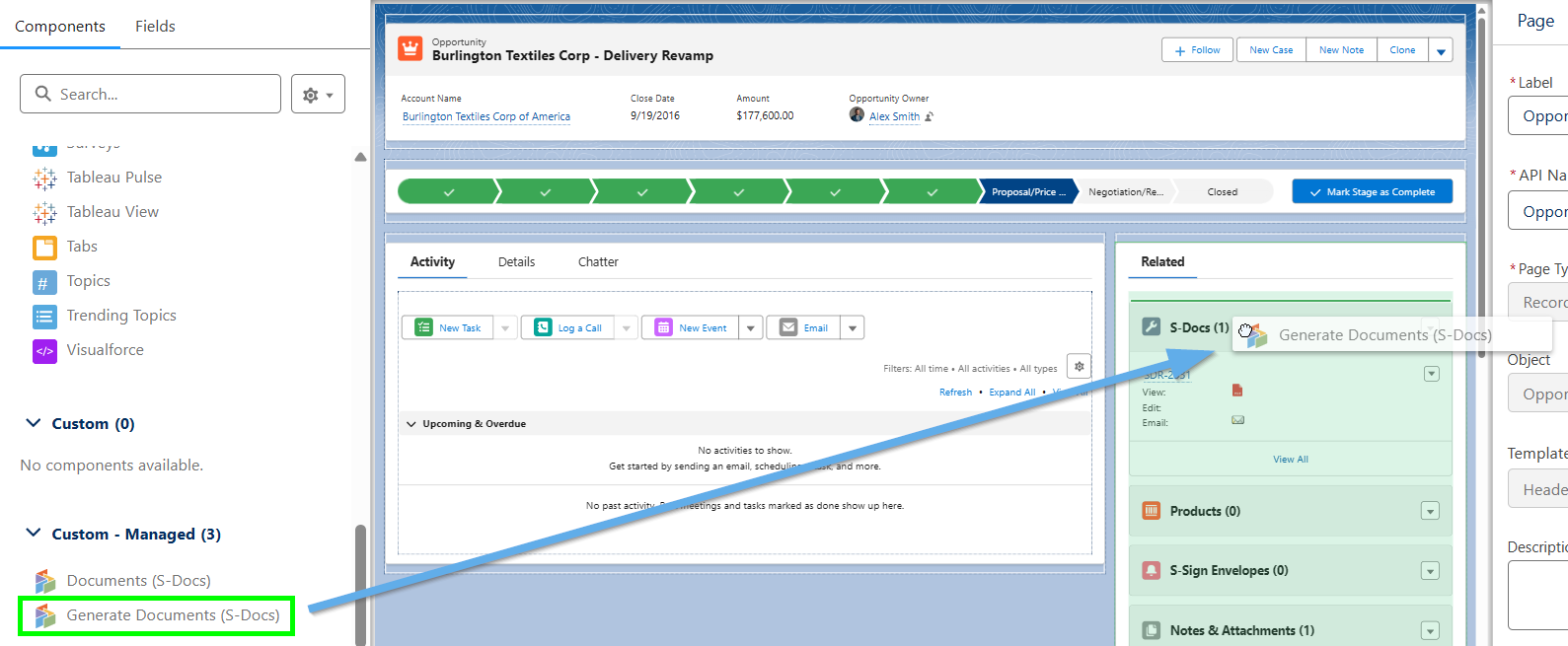
Step 2: Configure the Generate Documents LWC
After dragging the Generate Documents LWC onto your page layout, click on the component to open the configuration options.

Configure your LWC by choosing your title, templates, and how you want to give feedback to your user.
- Title: Header title of the LWC your user will see.
- Template IDs or Names: Insert a list of multiple S-Docs template names or IDs (use this option if you'd like your LWC to display multiple templates).
- Template Name: Search for a single template by name and select it (use this option if you'd like your LWC to display only a single template).
- Notify User: A notification will display to the user when each document completes generation.
- Open Preview: Documents will automatically open for users to preview after generation.
- Reuse Template for Multiple Documents: Allows generating multiple documents from a single template.
- Allow Users to Select Templates: Allow users to manually select multiple templates for generation.
- System Mode Generation (Experience Cloud): Grants guest users permission to generate documents from Experience Cloud.
Step 3: Configure Visibility (Optional)
You can optionally configure Component Visibility (located below the LWC's general configuration options) to display/hide this LWC based on the context of the current record. In the example below, the Generate Documents LWC will only display to users when their Opportunity reaches the Proposal/Price Quote stage.

Considerations for the Generate Documents LWC
- Only PDF and PDF-Upload template formats are supported at this time.
- The Generate Documents LWC does not support Runtime Prompts.
- Job Splitters are not compatible.
Configure the Documents (S-Docs) Component
Step 1: Drag the Documents (S-Docs) Component onto your Page Layout
Remaining in the Lightning App Builder, find the Custom - Managed section in the component menu once again, and drag the Documents (S-Docs) LWC onto your page layout. We recommend placing it directly below the Generate Documents LWC for easy access.
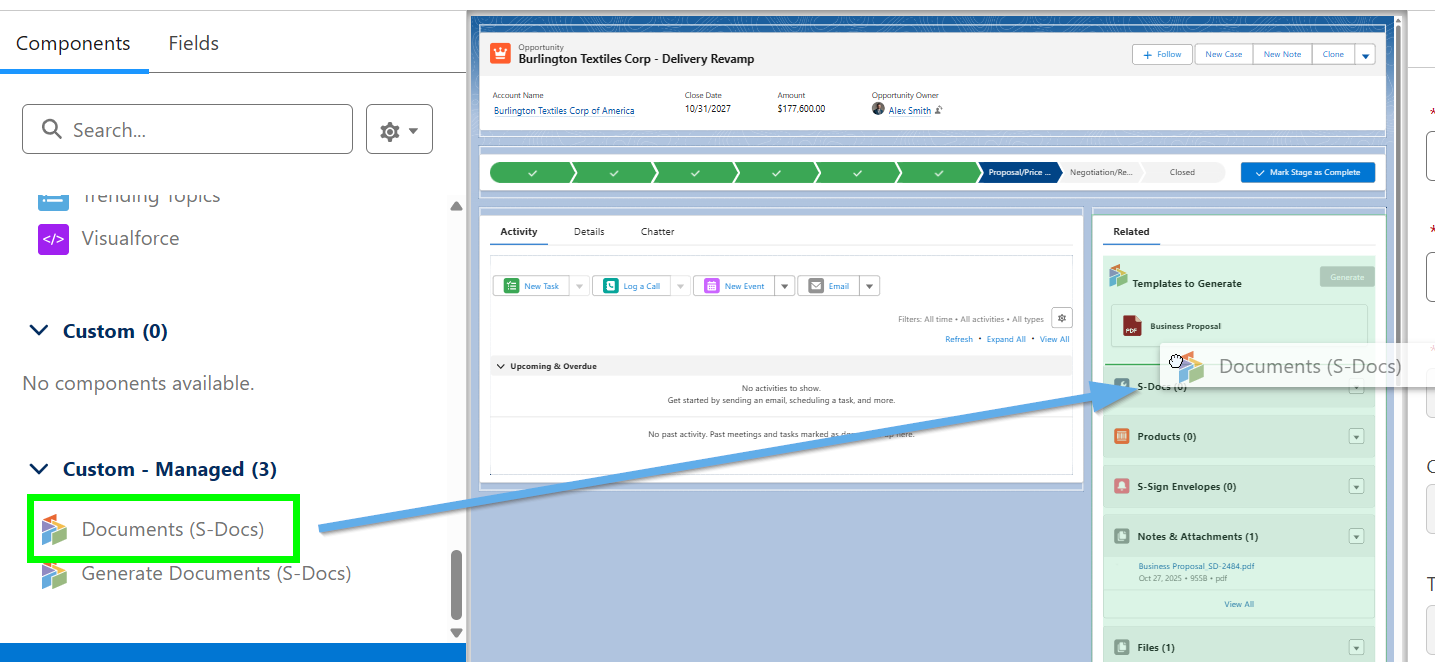
Step 2: Configure the Documents LWC
After dragging the Documents LWC onto your page layout, click on the component to open the configuration options.
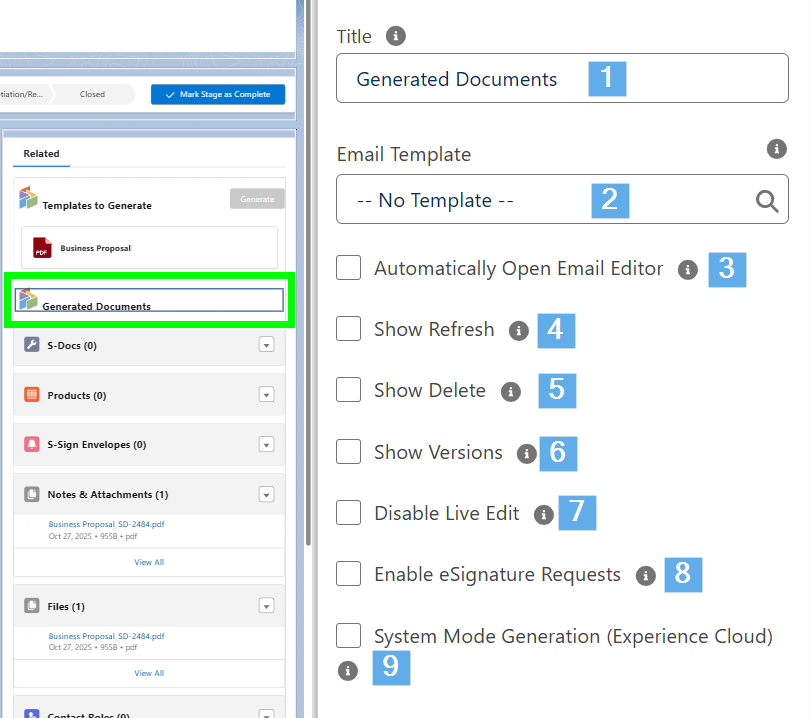
Configure your LWC by choosing your title, email templates, and how you want to give feedback to your user.
- Title: Header title of the LWC your user will see.
- Email Template: Search for and select an S-Docs HTML email template to use when emailing a generated document. When chosen, the template will prefill the email body and any configured fields (e.g., subject, recipients). You need to create at least one HTML email template to use this feature. Click here to learn more about creating S-Docs email templates.
- Choosing “-- No Template --” will open the email editor with nothing prefilled, allowing the user to fill out the email body and other fields.
- Automatically Open Email Editor: Open the email editor automatically after documents are generated. By default, users have to select a generated document and click Send on the component to open the email editor.
- Show Refresh: Enable/Disable the ability to refresh data in generated documents. This feature allows users to generate a new version of a generated document with the latest data from Salesforce.
- Show Delete: Enable/Disable the ability to delete generated documents.
- Show Versions: Enable/Disable the ability to display document version history. New versions are created when users refresh a document's data or use the Live Edit feature.
- Disable Live Edit: Disable the ability for users to edit generated documents in Salesforce. Selecting this option will override the Allow Edit template setting.
- Enable eSignature Requests: Allow users to send generated documents for e-Signature.
- System Mode Generation (Experience Cloud): Grants guest users permission to generate documents from Experience Cloud.
Step 3: Configure Component Visibility (Optional)
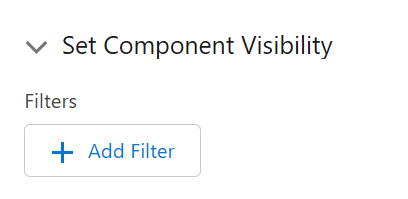
Just like with the Generate Documents LWC, you can optionally configure Component Visibility (located below the LWC's general configuration options) to display/hide this LWC based on the context of the current record.
What Documents Appear in the Documents LWC
Your new Documents LWC will display documents generated using the following methods:
- Documents generated via the Generate Documents LWC
- Documents generated via the S-Docs SDK
- Documents generated via legacy document generation methods, including the custom S-Docs button and S-Docs Jobs.
Additional Considerations for the Documents LWC
- HTML templates cannot include a related list.
- Runtime Prompts on HTML templates are not supported.
- Job Splitters are not compatible.
- The Email modal will not close automatically without Lightning Web Security enabled (see the Lightning Web Security and Content Delivery Network section below).
- Users will not be able to save inline edits without enabling LWS before generation (see the Lightning Web Security and Content Delivery Network section below).
Save your configurations
Click Save to save your configurations. When you navigate back to your record page, your newly configured S-Docs LWCs will appear.
Lightning Web Security and Content Delivery Network
Before your users begin working with the S-Docs Lightning Web Component for generated documents, enable Lightning Web Security to ensure proper performance.
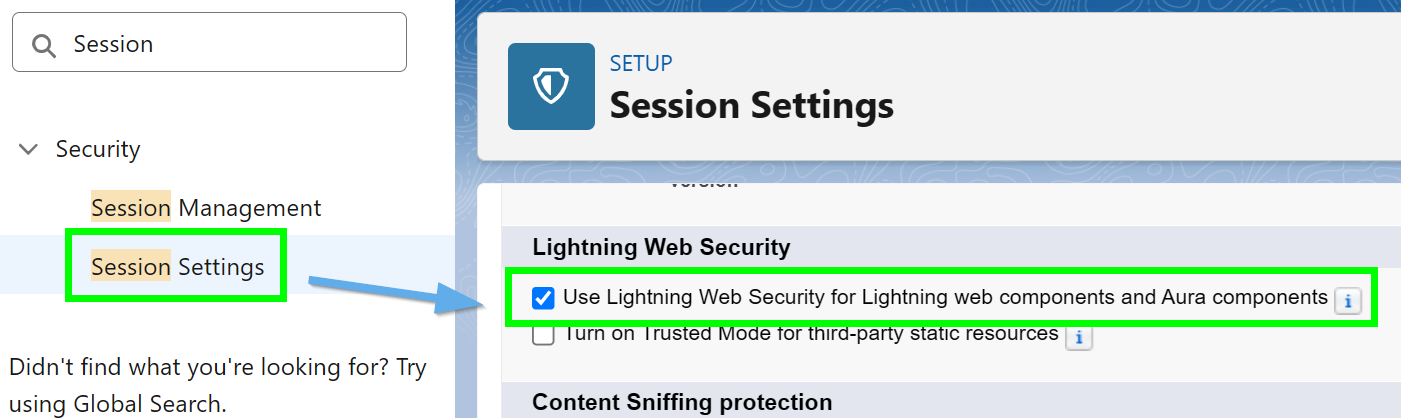
Step 1: From the Setup menu, type "session" into the Quick Find bar, then click Session Settings. Scroll to the Lightning Web Security section and enable the option to Use Lightning Web Security for Lightning web components and Aura components.
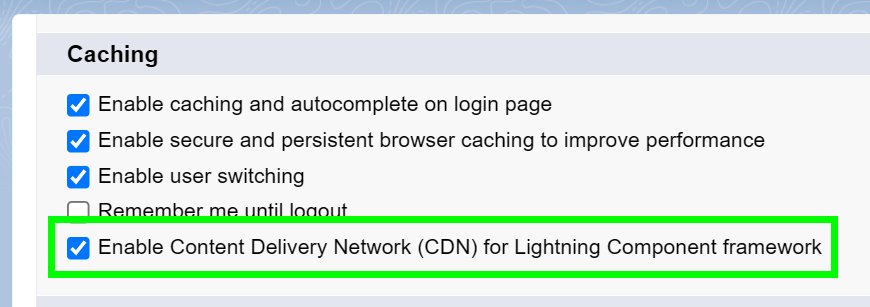
Step 2: Scroll to the top and enable Content Delivery Network (CDN) for Lightning Component framework.
Step 3: Scroll to the bottom of the page and click Save.