
Introduction
S-Docs allows you to use Microsoft PowerPoint templates for presentation generation. This feature allows you to:
- Build a PowerPoint template with tags that pull data from Salesforce
- Easily upload your PPTX file as an S-Docs template
- Generate dynamic PowerPoint presentations populated with Salesforce data
This guide will teach you how to create PPTX templates using the correct S-Docs syntax for merge fields, related lists, conditional logic, and more, and upload your PPTX templates to S-Docs.
Create Your PPTX Template Record
S-Docs PPTX templates are authored in Microsoft PowerPoint, but rely on S-Docs syntax to merge in dynamic Salesforce data. To access this syntax, you will first create a PPTX template record in Salesforce (even before your presentation is ready). You'll then use the S-Docs template editor to generate syntax for dynamic data you'd like to display, and copy this syntax into your PowerPoint template. After this, you'll upload your completed PPTX file to the template record so that users can generate presentations with it.
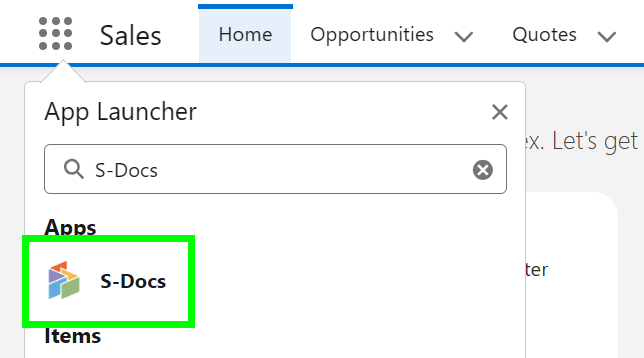
To create a PPTX template record, start by navigating to the S-Docs Template object. Click the App Launcher, type "S-Docs," and click the S-Docs app.
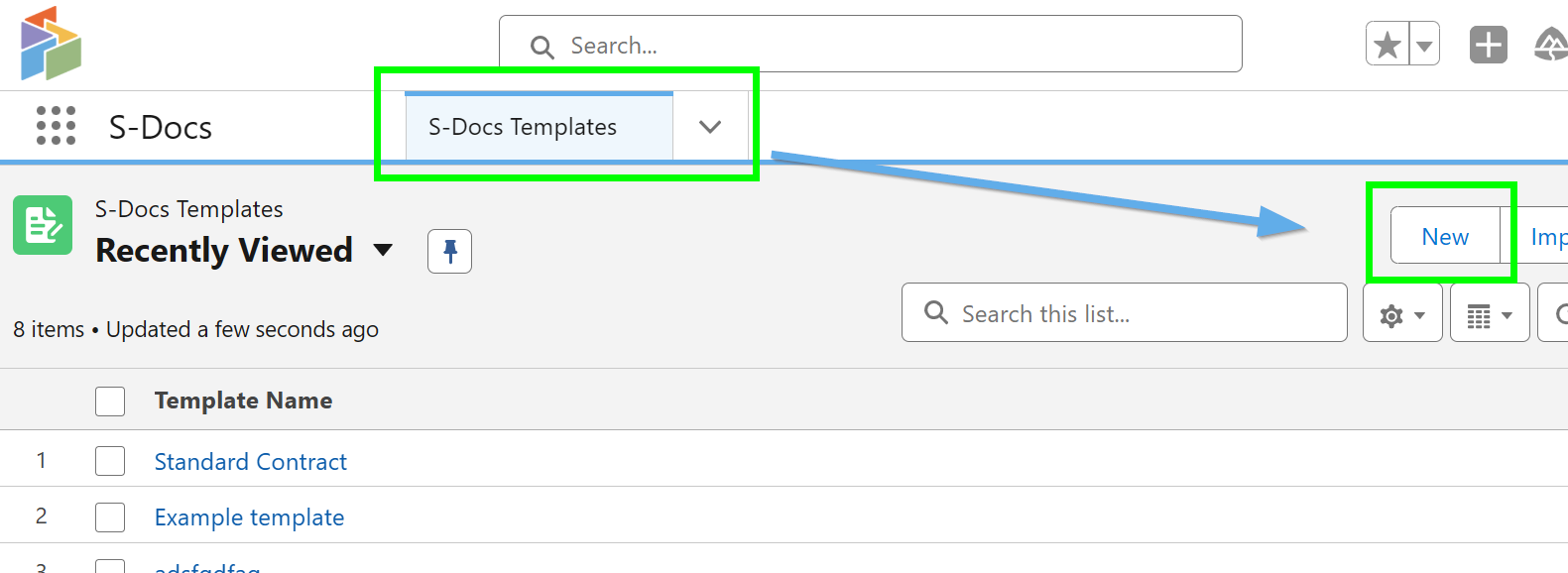
Switch to the S-Docs Templates tab and click New.
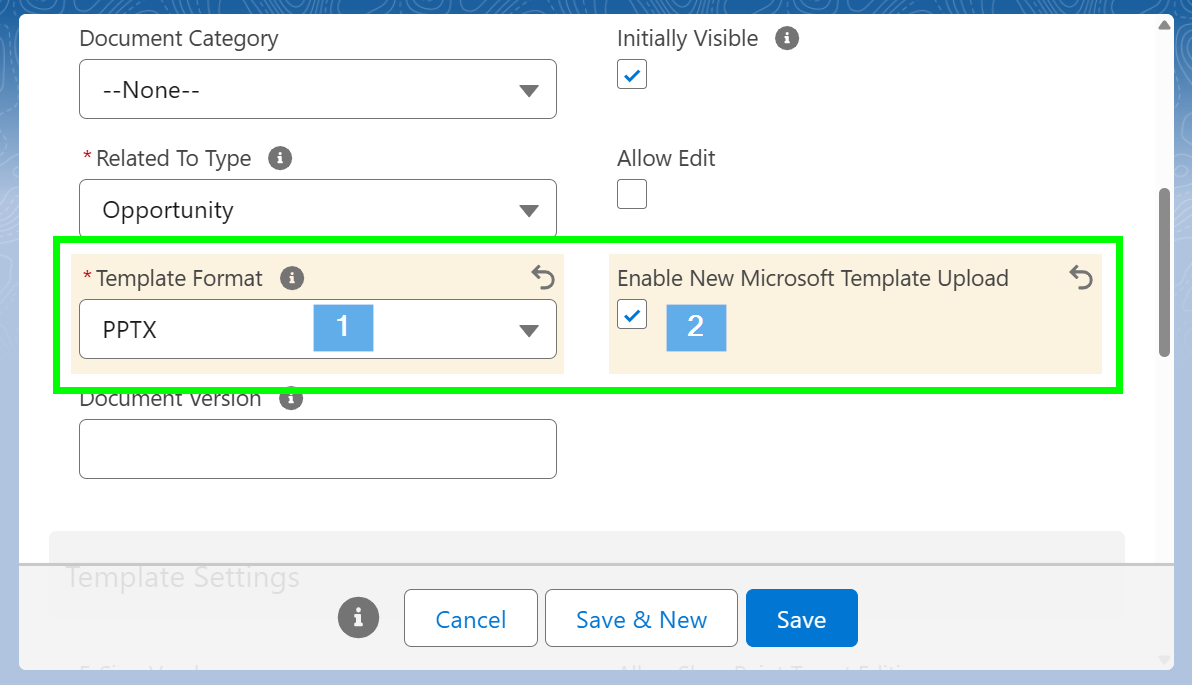
Click on the Template Format drop-down field and [1] choose PPTX. If you are using S-Docs Summer 2025 (10.0) or greater, the [2] Enable New Microsoft Template Upload checkbox will appear. Check this box. Click Save.
Access Syntax and Build Your Template in Microsoft PowerPoint
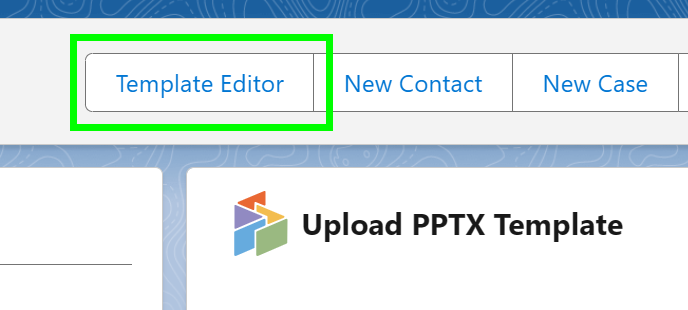
Once your template record is saved, click Template Editor on the template record detail page.
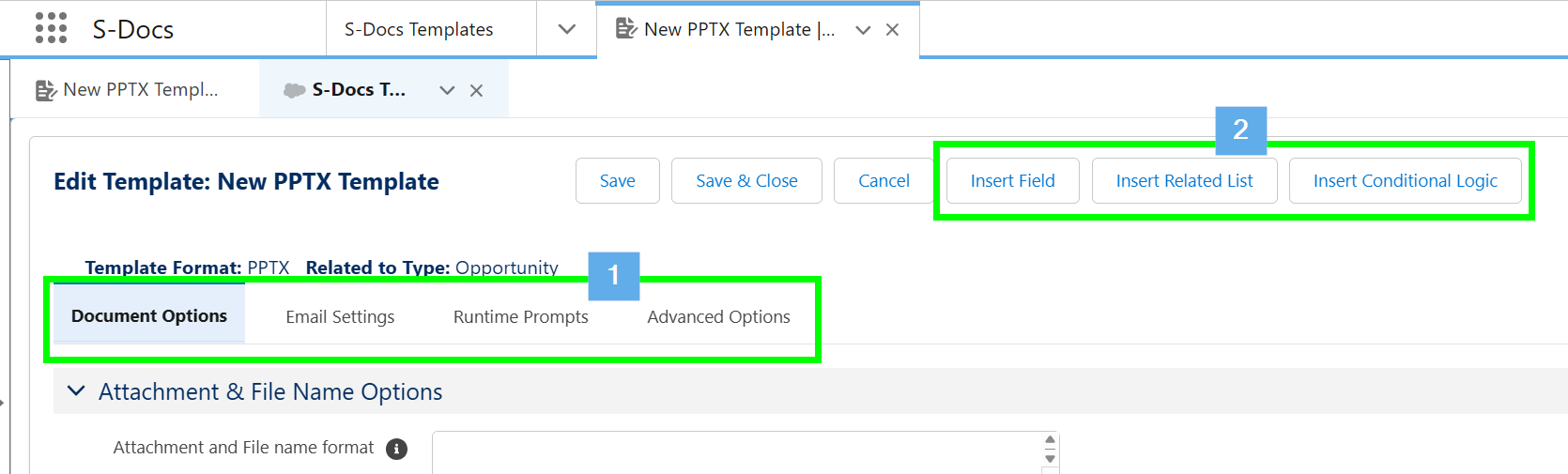
The PPTX template editor allows you to [1] edit file settings and other advanced options, and [2] access syntax to paste into your Microsoft PowerPoint presentation that enables dynamic data and conditional logic to function when the presentation is generated.
Merge Field Syntax
Brackets are required around merge field, related list, and conditional logic syntax in PPTX templates. The template editor allows you to easily build this syntax.
Click Insert Field at the top of the template editor to access merge fields. Select your field, apply any formatting, then copy the result in the text box at the bottom of the menu.
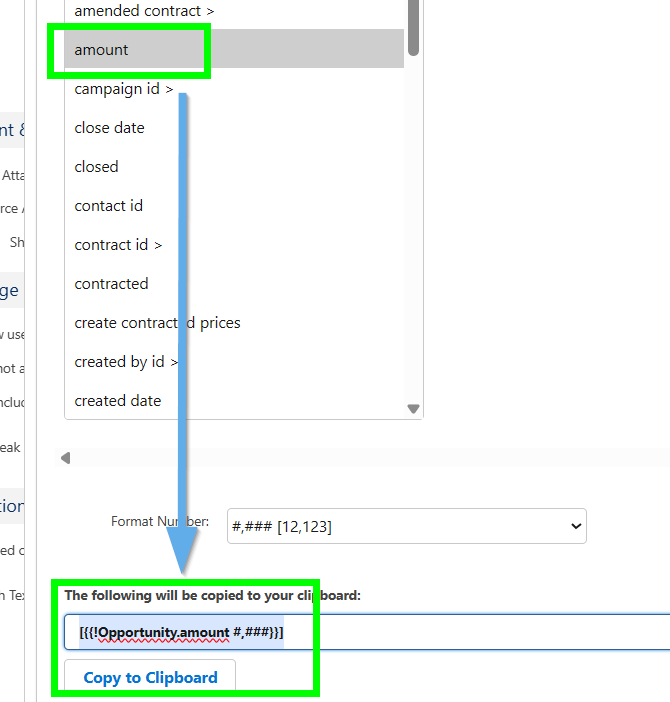
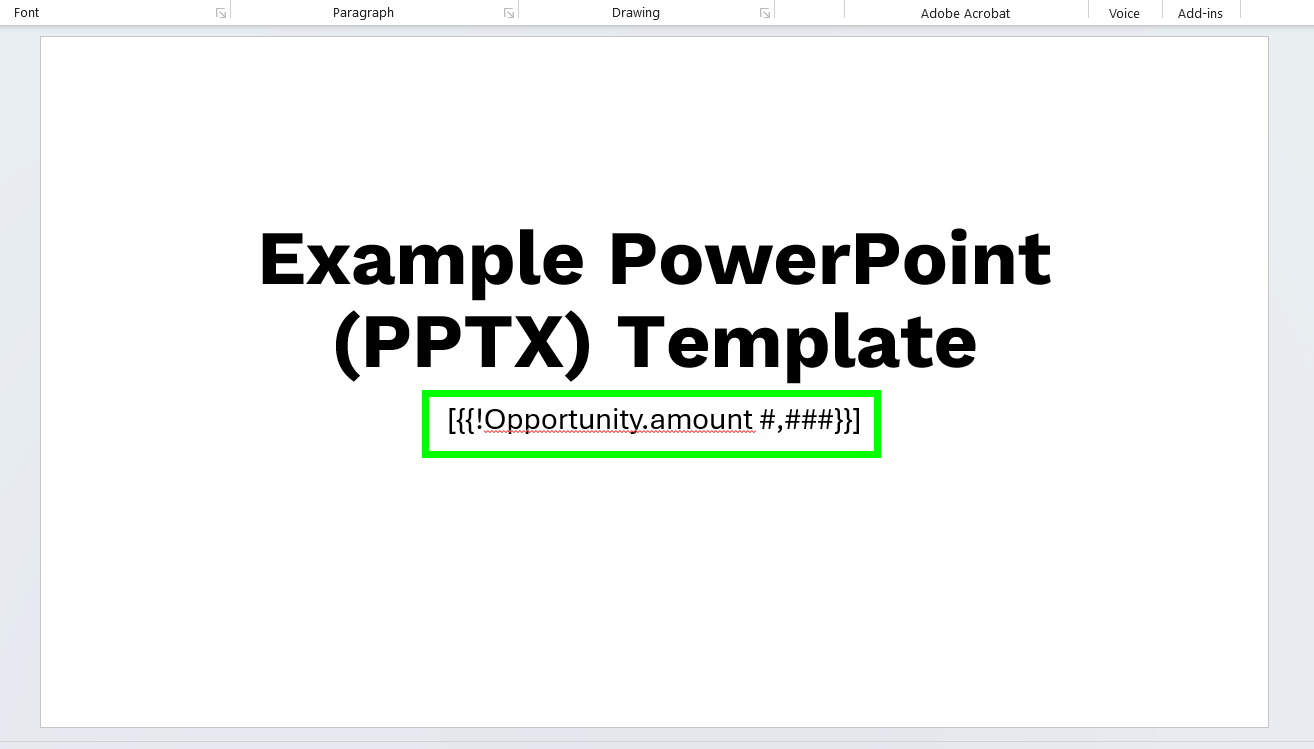
Paste the syntax into your Microsoft PowerPoint presentation.
Related List Syntax
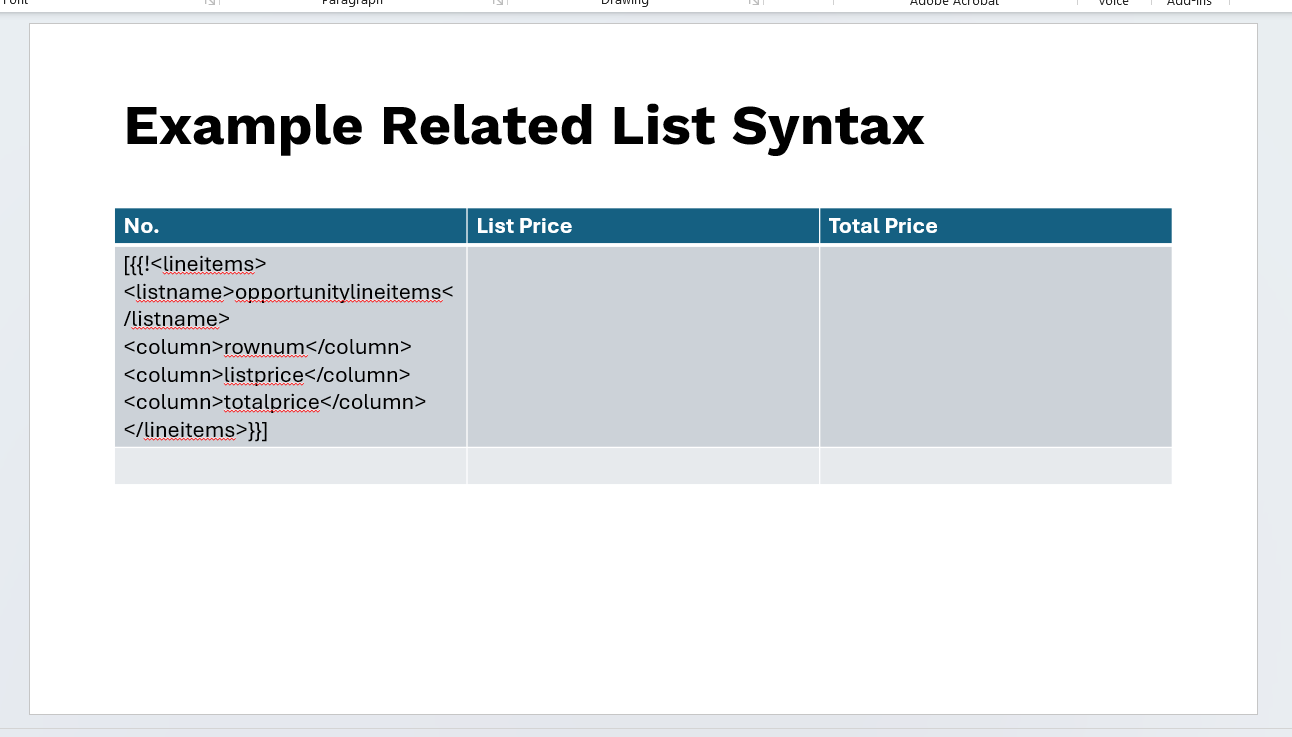
To insert a related list into a PPTX template, syntax must be generated and pasted within a prebuilt styling table. Click Insert Related List at the top of the template editor to access the related list menu. Use the tool to build your related list. When you're ready to insert it into your Microsoft PowerPoint presentation, navigate to the Get Related List tab within the related list menu and copy the source.
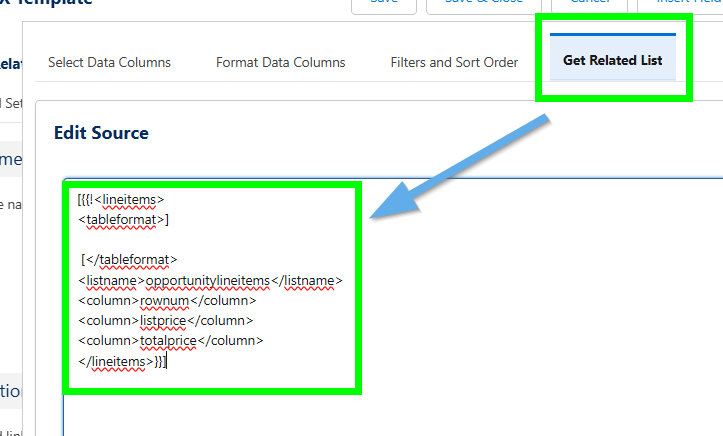
In your Microsoft PowerPoint presentation, create a styling table that includes the following:
- Header row with intended header text
- Odd row
- Even row
Paste your related list code into the cell in the first column under the header, as seen below.
Conditional Logic Syntax
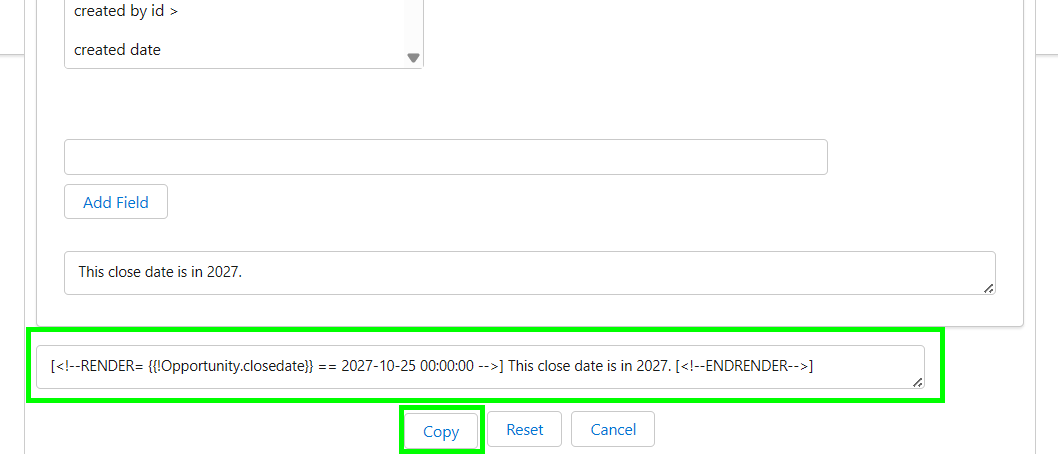
Click Insert Conditional Logic at the top of the template editor to access the logic builder. Build your conditional statement and copy the output at the bottom of the conditional logic menu. Click here for more information on using conditional logic with S-Docs.
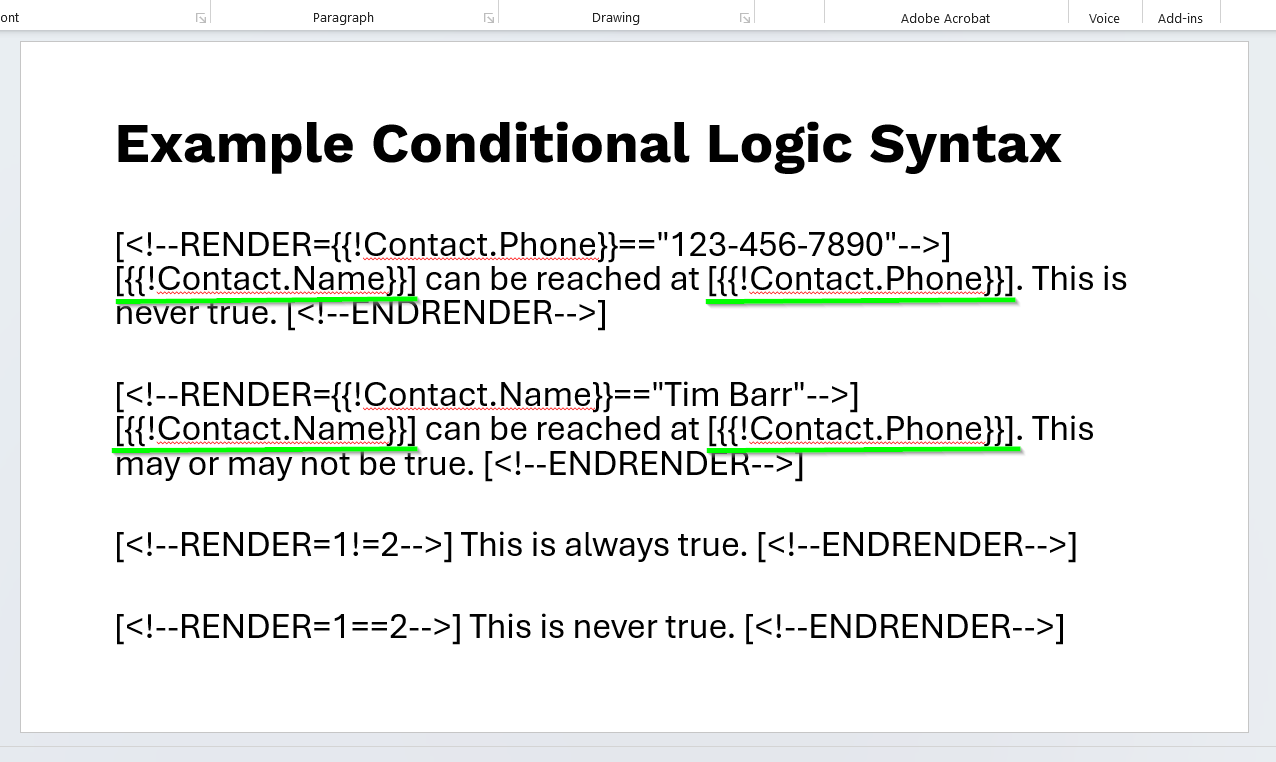
Note that if conditionally rendered content contains merge fields, those are required to be enclosed within brackets too (see example below).
[<!--RENDER={{!Contact.Phone}}=="123-456-7890"-->]
[{{!Contact.Name}}] can be reached at [{{!Contact.Phone}}]. This is never true.
[<!--ENDRENDER-->]
[<!--RENDER={{!Contact.Name}}=="Tim Barr"-->]
[{{!Contact.Name}}] can be reached at [{{!Contact.Phone}}]. This may or may not be true.
[<!--ENDRENDER-->]
[<!--RENDER=1!=2-->]
This is always true.
[<!--ENDRENDER-->]
[<!--RENDER=1==2-->]
This is never true.
[<!--ENDRENDER-->]
Additional Syntax
Rich Text Images
You can display images stored in rich text fields by surrounding the merge field in three curly braces instead of two, as shown below.
[{{{!Object.FieldName}}}]
To adjust the image dimensions, navigate to the Document Options tab of the template editor, scroll down to the Other Options section, and input your desired dimensions into the Rich Text Image Dimensions field, as shown below.

Rich Text Font
Fonts and font sizes are not pulled from Salesforce rich text fields into your PPTX document - they will simply match Microsoft PowerPoint's "Normal" style. If you want your presentation to display the font from your rich text field, you can either change Microsoft PowerPoint's "Normal" style to match the desired font/font size, or use the font-family and font-size merge field attributes. For example, if your rich text field is written in Arial font at size 12, your merge field might look like this:
[{{!Object.FieldName font-family="Arial" font-size="12"}}]
Named Queries
If you're using named queries in your PPTX template, you'll need to convert them to the PPTX format. If your named query looked like this:
<!--{{!<LineItemsSOQL>
...
</LineItemsSOQL>}}-->
{{!myQuery1.fieldname}}
You'd need to update it to this syntax:
[{{!<LineItemsSOQL>
...
</LineItemsSOQL>}}]
[{{!myQuery1.fieldname}}]
Upload Your PPTX Template to S-Docs
After building your Microsoft PowerPoint template, you can upload the PPTX file to your template record.
Template upload and generation methods differ based on what version of S-Docs you are using.
S-Docs Summer 2025 (10.0)+
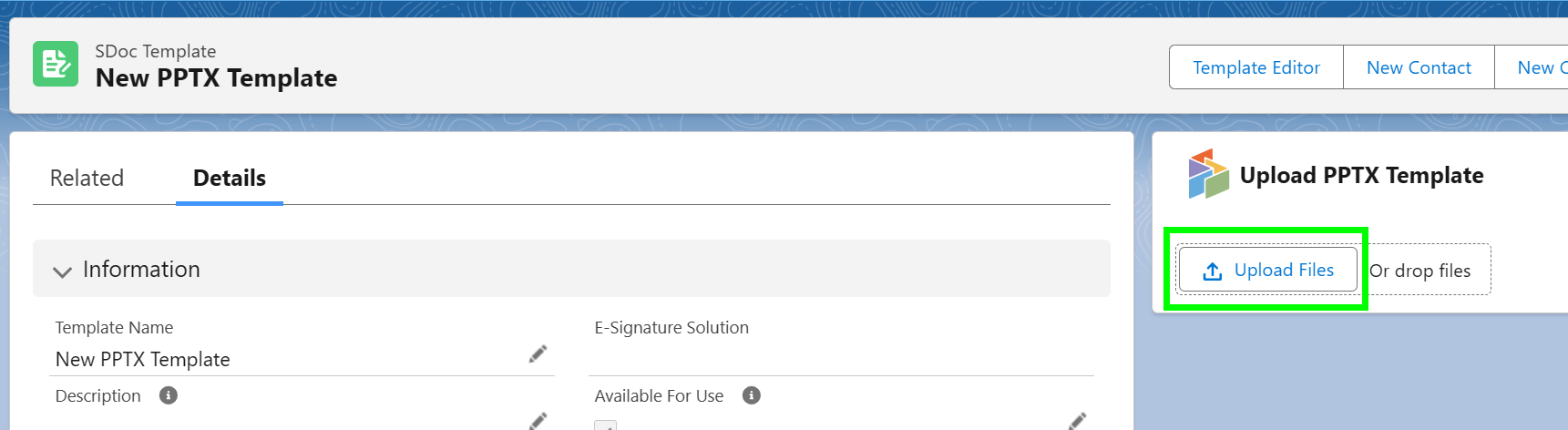
If you are using S-Docs Summer 2025 or greater and checked the Enable New Microsoft Template Upload checkbox, a new Lightning Web Component will appear on your template record. Click Upload Files to upload your PPTX file to S-Docs.
Once your PPTX template is uploaded, you can add it as an available template for generation on the related object's Generate Documents LWC.
Below S-Docs Summer 2025 (below 10.0)
If you are using a version of S-Docs below Summer 2025 (10.0), or you require generation using the custom S-Docs button method (instead of the LWC/SDK) and haven't checked Enable New Microsoft Template Upload, click the Template Editor button on the template record.
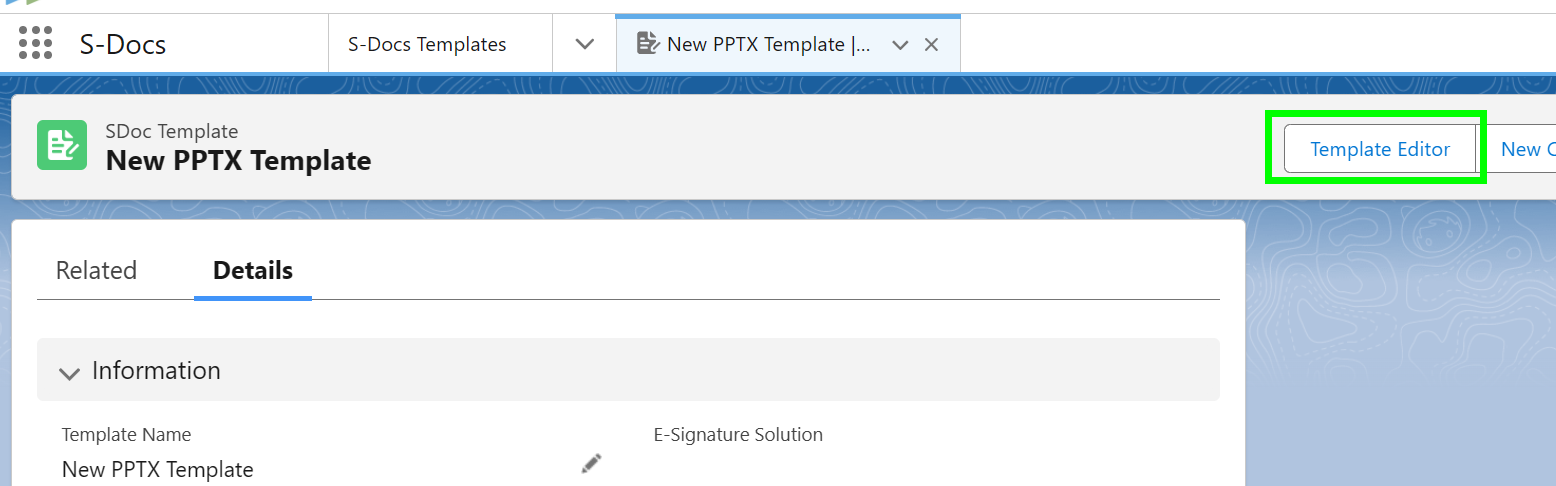
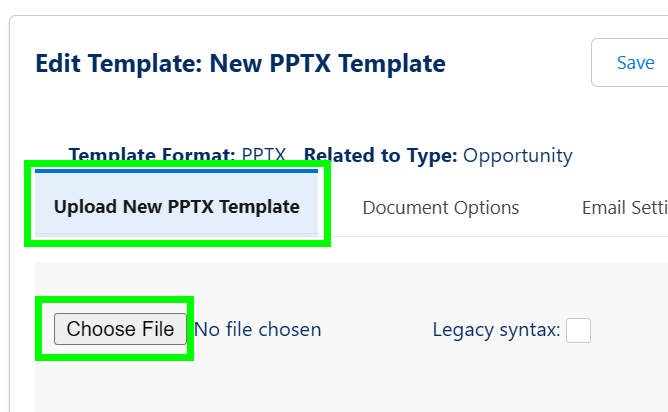
Under the Upload New PPTX Template tab, click Choose File and upload your Microsoft PowerPoint template.
After selecting the file, you will see a message indicating that your file is uploading. In a matter of seconds, your template will successfully upload.
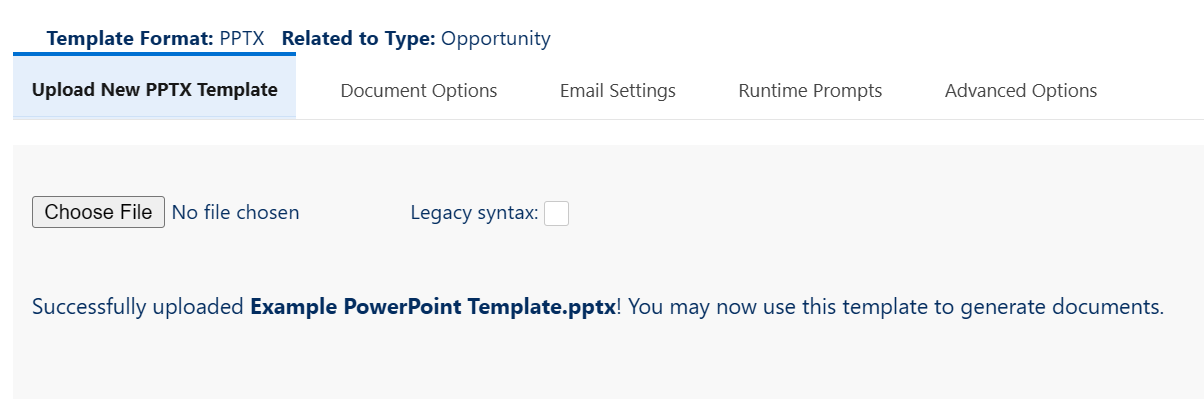
Once your PPTX template is uploaded, you can generate it using the legacy custom button generation method (see Option 2 in our installation and configuration article).
Limitations of PPTX Documents in S-Docs
- Related list tables cannot span multiple pages. You can use LIMIT and OFFSET in your SOQL query.
- PPTX templates have a limit of approximately 10 slides when uploaded to the template editor.