
The S-Docs Live Edit and Email LWCs are now available in the Screen Flow Component Library, giving Salesforce Admins and Flow Builders a powerful way to add dynamic document editing to any automated process.
With this update, you can integrate Live Edit and Email capabilities directly into your flows, allowing users to view and modify documents, prepare emails, and distribute generated documents in real time as part of a guided workflow (e.g.; screen flows, OmniStudio), all without ever leaving Salesforce.
Using Live Edit and Email LWCs in a Screen Flow
Integrating Live Edit and Email Lightning Web Components (LWCs) into a Salesforce screen flow provides a powerful, end-to-end document workflow experience. Together, these components allow users to generate, review, edit, and send documents seamlessly as part of a continuous workflow, streamlining end-to-end processes for end-users.
How it works:
- Live Edit enables users to open and edit generated documents directly within Salesforce before they’re finalized or sent.
- Email LWCs allow users to review and send S-Docs emails and include document attachments (automatically or manually)
By combining both components, you can design screen flows that support critical stages of the document lifecycle: from creation and review to approval and delivery. While the LWCs can be implemented independently, this combined approach streamlines document generation and communication, reduces manual handoffs, and ensures accuracy at every step.
Example use cases:
- Unlock the ability for a sales rep review and update contracts in real time, then email it to the customer for signature—all within one flow.
- Allow a service agent to personalize a customer letter, make final edits, and send it immediately as part of a case resolution process.
- Provide managers with a single step to finalize content, approve messaging, and deliver communications directly from a guided workflow.
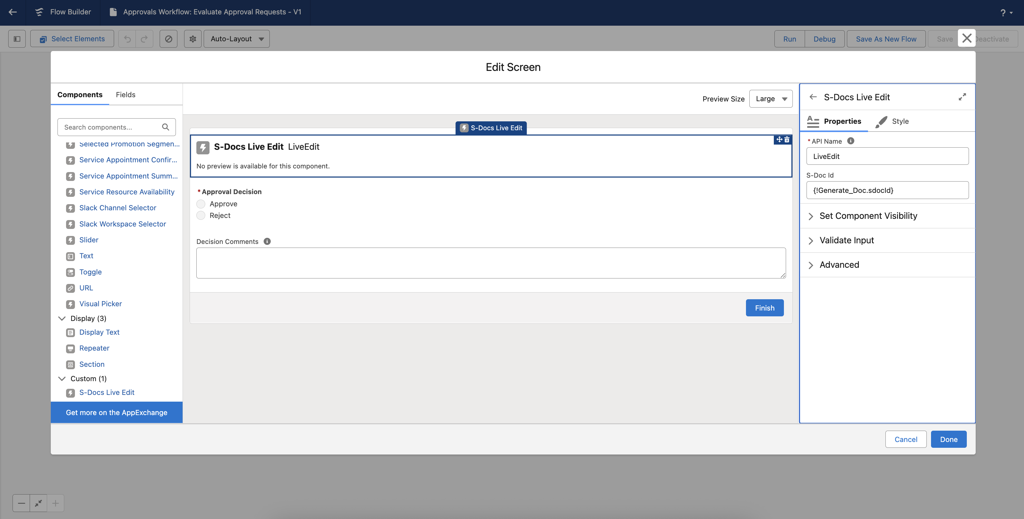
How to add S-Docs LWCs to a screen flow (live edit)
-
Create or open a Screen Flow in Flow Builder.
- Add a Screen element to the Flow.
-
In the Screen Flow Component Library, locate S-Docs Live Edit.
-
Drag and drop the Live Edit component into your screen element.
-
Configure the component properties:
-
Define an API Name.
-
Specify the S‑Doc ID for the document to be edited (dynamically configured to receive S-Doc ID from earlier steps in the same Flow).
-
-
Save and activate your flow.
How to add S-Docs LWCs to a screen flow (email)
-
Create or open a Screen Flow in Flow Builder.
- Add a Screen element to the Flow.
-
In the Screen Flow Component Library, locate S-Docs Email Screen.
-
Drag and drop the Live Edit component into your screen element.
-
Configure required component properties:
-
- Define an API Name
-
Configure optional component properties:
-
- Content Version Ids to Attach (comma-delimited File Ids)
- S-Doc Ids to Attach (comma-delimited S-Doc File Ids)
- Email CC Address
- Email From Org Wide Id
- Email Subject
- Email Body
- Email Template (S-Docs Email Template Id)
- Email To Address
- Lock Email Body, CC Address, From Address, Email Subject, Email to Address (boolean value)
- Modal Title (defines a custom Title on the modal; the default is Email Preparation)
- Record Id (Id of the record to use for the email template)
-
Save and activate your flow.

Once configured, when users run the flow they’ll be presented with the Live Edit LWC and/or the Email LWC interface directly within their workflow process. They can make updates instantly—no context switching required.
With S-Docs LWCs for Screen Flows, you can build smarter, more adaptable processes that keep your team in control of document content every step of the way.